NSIS NAVTTC
Welcome to the NAVTTC candidate registration portal. Here, we provide you with the complete details in steps on how you will register for the NAVTTC Course. The NSIS NAVTTC Registration Portal allows candidates across Pakistan to apply online for NAVTTC skill development programs. Whether you are applying for free courses or paid courses, you must first create an account on the official NSIS portal and complete your profile before submitting your application.
This updated guide explains the complete NAVTTC registration process, login procedure, required documents, challan submission, and roll number slip download in simple steps.
What is NSIS NAVTTC?
The National Vocational and Technical Training Commission (NAVTTC) operates the National Skills Information System (NSIS) to manage admissions for technical and vocational training programs throughout Pakistan.
Through the NSIS portal, applicants can:
- Register online
- Apply for NAVTTC courses
- Update personal information
- Submit applications
- Download roll number slips
- Track application status
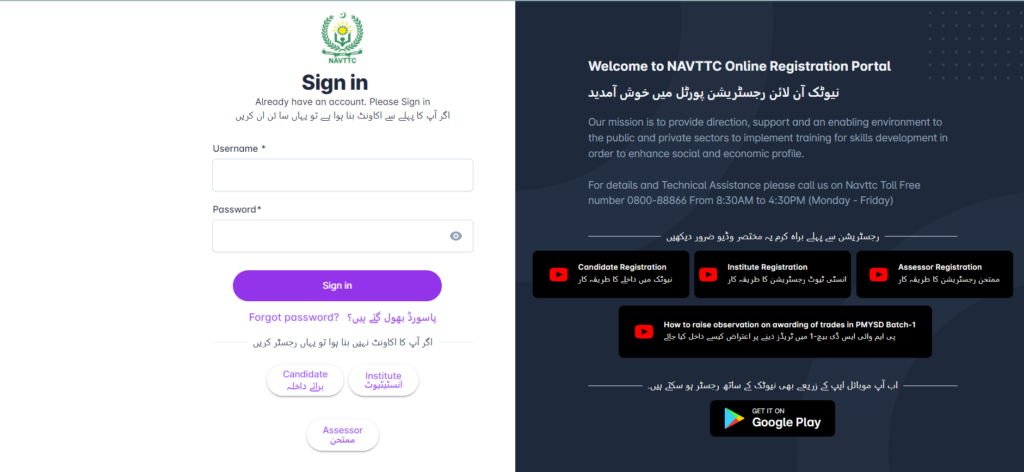
NSIS NAVTTC Login (https://nsis.navttc.gov.pk/sign-in)
Visit the official NSIS NAVTTC portal and click the Candidate option.
Sign in using:
- Username
- Password
If you are a new applicant, create an account first before logging in.
First of all, click on the ‘Candidate’ button on the screen.
Click Candidate Registration and provide:
- Full Name
- CNIC Number
- Passport Number (if applicable)
- Mobile Number
- Email Address
- Username
- Password
Click Create Account.
Step 2: Verify Your Account
After registration, the system will send a 4-digit OTP to your registered mobile number and email address.
Enter:
- Username
- Password
- OTP Code
Click Verify OTP to activate your account.
Step 3: Complete Your Profile
Once your account is activated, complete the remaining information.
Provide:
- Father’s Name
- Gender
- Date of Birth
- Passport Issue Date (if applicable)
- Passport Expiry Date
- Highest Qualification
- District of Domicile
- Tehsil
- Complete Address
Step 4: Employment Information
Select your employment status.
If employed overseas, provide:
- Country
- Employer Name
- Designation
- Monthly Salary
Step 5: Disability Information
Select either:
- Yes
- No
Review all entered information carefully before proceeding.
Click Update Account.
How to Apply for Paid NAVTTC Courses
Click on the ‘Generate Challan’ button to download the Challan form. Print the Challan and
deposit the fee in any branch of the National Bank of Pakistan (NBP). Please note that your
application will not be accepted without submitting a fee.
After submitting the registration fee, type your username and password to log in to your account. Enter your Challan number and date of fee submission. Select the district where you want to take the test.
Once your application is submitted, please click on ‘Dashboard’ at the left side of your
screen, where you can see all the information regarding your application. Click on the encircled icon and save or print your Navttc roll number slip.
How to Apply for Free NAVTTC Courses
Applicants applying for free NAVTTC courses do not need to generate or submit a challan.
After completing your profile and clicking Update Account, you can proceed with your application and download your roll number slip once it becomes available.
How to Download NAVTTC Roll Number Slip
After successfully submitting your application:
- Log in to your NSIS account.
- Open the Dashboard.
- Locate your submitted application.
- Click the Roll Number Slip icon.
- Download or print your roll number slip.
Always keep a printed copy for the entry test.
Documents Required for NAVTTC Registration
Prepare the following documents before applying:
- Valid CNIC or B-Form (where applicable)
- Active Mobile Number
- Valid Email Address
- Passport (if available)
- Educational Certificates
- Domicile
- Passport-size Photograph (if required)
Common Problems During NAVTTC Registration
OTP Not Received
- Wait a few minutes.
- Check your email spam folder.
- Ensure your mobile number is correct.
- Request OTP again.
Unable to Login
- Verify your username and password.
- Reset your password if necessary.
Challan Not Showing
- Only applicants for paid courses receive a challan.
Roll Number Slip Not Available
Roll number slips are uploaded after the application process and test schedule are finalized.